On any given day that I spend on my laptop - I’m opening web pages, looking at images, reading books, listening to music, taking notes and writing code. These activities depend on an abstraction over bytes stored on my disk.
The abstraction is what we call ‘files’ and they come in many forms.
Let me step back and list the files that are associated with each activity -
the web pages I open? .html & .js files, looking at images? .png or
.jpg, reading books? .pdf or .epub, listening to music? .mp3, taking
notes? .md files, coding? .py or .go files. On a high level what I’m
essentially doing is operating on files using programs. I either read, or
write.
Read & Write
Let me start with the ‘reading’ aspect of a file. I use Okular to read books,
Brave to open webpages, Neovim to read source files or notes, Elisa to play
music. When you open a file to ‘read’ - what you are doing is using a reader program that specializes in dealing with the specific type of file you want to
read. For e.g, Okular/Adobe Acrobat specialize in reading PDF files.
I call them reader programs but in reality they do both - read/write.
What about the ‘writing’ aspect of a file? I use a text editor
or an IDE to write source files. What about an image file? I use a program like
KPaint to help me visualize what I’m drawing and then when I click ‘Save’, it
goes ahead and writes bytes into a .jpg or .png for me.
Writing an Image with a Text Editor
Can I write an image using a text editor? Do I always need an image tool to
paint? Not really. In fact, I’m going to write a simple image file using my
text editor that displays a red square. It’s going to be 5 pixels wide and 5
pixels high. Makes it easier to spot it. I will name it red_square.
P3
5 5
255
255 0 0 255 0 0 255 0 0 255 0 0 255 0 0
255 0 0 255 0 0 255 0 0 255 0 0 255 0 0
255 0 0 255 0 0 255 0 0 255 0 0 255 0 0
255 0 0 255 0 0 255 0 0 255 0 0 255 0 0
255 0 0 255 0 0 255 0 0 255 0 0 255 0 0
I use my default image viewer program to open it. And I see this,
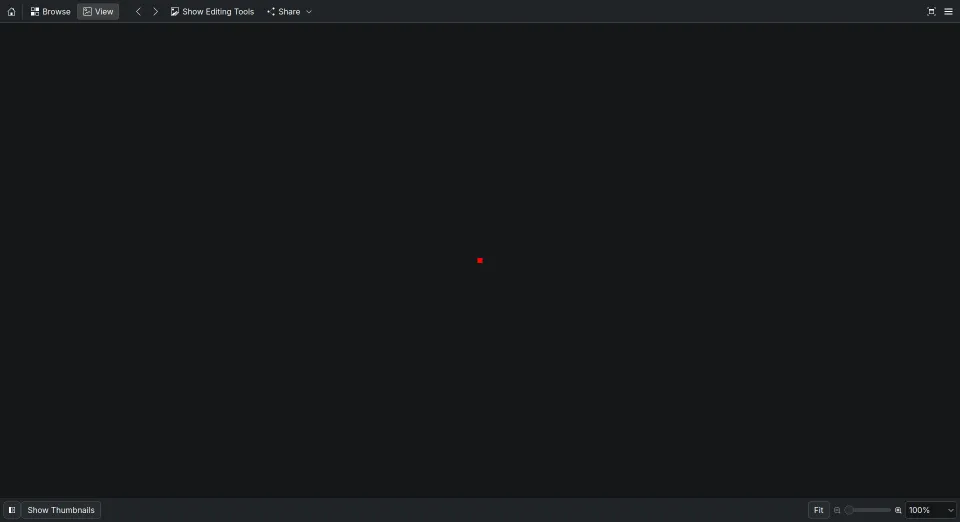
Now, what exactly did I do here? I wrote a bunch of 2s, 5s, 0s and a red dot appeared.
If you also noticed I did not give my handcrafted red_square file an extension
like .png or .jpg yet. I did that to show you that file extensions don’t mean
anything. They’re just for your OS/File Explorer to help pick a program using
which you can ‘read’ or ‘write’ these files and show you pretty icons.
Let me explain.
I used a ppm image file format. Similar to jpg & png which are also image
file formats. However, they are binary formats. They compress image data which
make writing them manually difficult for mere mortals like me. Anything that
has to do with binary is probably best when left to machines.
ppm file format on the other hand is simple and once you understand the
“spec” requirement you can write image files like the one we just wrote.
.ppm is not as popular as .png because of it’s inefficiency. A simple red
dot that we just wrote is 253 bytes. The same 5x5 red square using Kolour Paint
exported to .png is 99 bytes. But it makes for a great educational tool.
Let me walk you through what each line is doing. The very first thing I wrote was P3 — that’s the magic bytes. It tells any image reader that what follows is a plain text PPM file with RGB color values. The next line, 5 5, is the canvas: 5 pixels wide, 5 pixels tall. Then 255 sets the color ceiling — it tells the reader that color values will range from 0 all the way up to 255. Everything after that is the actual pixel data. Each pixel is described by three numbers — Red, Green, Blue. So 255 0 0 means full red, zero green, zero blue. Then I repeat that triplet 25 times, once for each of the 25 pixels on my 5×5 canvas, and the result is a solid red square.
Files fall in either of the two buckets,
- ASCII files - Human readable
- Binary files - Not human readable
Now here’s a mental model I find useful. A file isn’t just bytes like I said
before. It’s a serialized data structure. Let me unpack that. When a program
is running, it holds things in RAM — a list of pixels, a tree of document
sections, a song broken into frequency data. RAM is fast but temporary. The
moment you close the program, it’s gone. So when you hit ‘Save’, what the
program is really doing is flattening that in-memory structure into a linear
sequence of bytes and writing it to disk. That process is called
serialization.
When you open the file again, the reader program does the reverse — it reads those bytes off disk and reconstructs the original structure back into RAM. That’s deserialization. This is why you can’t just open any file with any program. A PDF reader knows how to reconstruct a PDF’s internal structure from bytes. It has no idea what to do with the byte layout of an MP3. The bytes are just bytes — the meaning lives entirely in the reader program.
Specs & Magic Bytes
Two of the concepts I introduced — specs and magic bytes — are worth unpacking further.
The person who wrote code for Okular and the person who wrote Adobe Acrobat both read the same PDF spec. They made independent decisions about their code, their language, their architecture — but because they both honoured the same document, a PDF written by one program can be read by the other.
A file format spec is a technical document detailing how the bytes are organized. The .ppm spec I used is less than 2 pages and you can read it in one sitting. Then there’s file format specifications that are several hundreds of pages like the PDF spec. People spend decades reading, understanding and implementing file specs.
Reading and implementing PDF spec for 13 years.
— Peter Steinberger 🦞 (@steipete) April 30, 2026
It was hard earned.
I’d like to implement a PDF reader with annotations and all that jazz one day. It’ll be fun.
As for the magic bytes, they exist to help reader programs to identify the file type.
A few examples of magic bytes are,
- PDF files have magic bytes that translate to
%PDF-usually followed by a version number. There are newer versions of PDF spec. - Sqlite database file have magic bytes as
SQLite format 3 - For an .exe file it’s
4D 5Ain hex which translates toMZwhich represents the initials of the designer of the format. Mark Zbikowski. - A Java class file is
cafe babelol.
I use the command hexdump -C to inspect the magic bytes of files. Try running
it on a .PNG file you have on your disk.
If you don’t want to manually inspect the magic bytes there’s a command on Bash
named file. Point it to a file you’re interested in and it will perform a
magic byte check on it and tell you the type.
Toodaloo
So here’s the full picture. The extension on a file: .pdf, .png, or .mp3 is just a hint, a label for your OS to pick a default program. A reader program checks the first few bytes before it does anything with a file. Once file type is confirmed it proceeds to parse it. A spec is what binds the whole ecosystem together: two devs can come up with their own implementation for a reader program, and users can choose either and expect the file to work on both.
References
- ppm spec - https://netpbm.sourceforge.net/doc/ppm.html